Bad Time Simulator
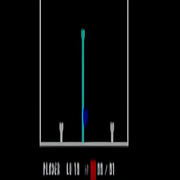
Bad Time Simulator is an intense reaction game built around dodging attack patterns, reading the screen quickly, and lasting longer under pressure.
Bad Time Simulator
How to play Bad Time Simulator
- Press Start Game above to load Bad Time Simulator inside the browser player.
- Click the game screen once so Mouse inputs register cleanly.
- Follow the on-screen menu to begin a single-player action session.
- Open the Controls button any time to check inputs, or press Fullscreen for a larger view.
What Bad Time Simulator is and how it plays
Bad Time Simulator is a free action browser game designed around quick reactions, movement control, and managing threats across escalating stages. Bad Time Simulator is an intense reaction game built around dodging attack patterns, reading the screen quickly, and lasting longer under pressure.
Each session rewards positioning, timing attacks or dodges, and reading enemy patterns early. Because Bad Time Simulator runs directly in your browser, you can open a quick round between tasks or replay stages until you master the layout.
- Genre focus: Action gameplay built for direct browser play.
- Play mode: Single-player support inside one lightweight page.
- Instant access: loads on demand when you press Start Game with no download.
- Player tools: built-in controls reference, quick reload, and fullscreen view.
Bad Time Simulator controls and browser setup
Bad Time Simulator uses Mouse on desktop browsers and supports touch input when the embedded version provides on-screen buttons. Review the table below before starting your first round.
| Platform | Input | Action |
|---|---|---|
| Desktop | Mouse | Click menus, upgrades, buildings, or management panels. |
| Desktop | Keyboard Shortcuts | Use optional shortcuts when the game provides them. |
| Mobile | Tap Menus | Tap interface panels, upgrades, or tasks to keep progress moving. |
| Mobile | Larger View | Landscape mode can help when the interface feels crowded. |
| Toolbar | Fullscreen | Expand Bad Time Simulator to fill your screen. |
| Toolbar | Reload | Restart Bad Time Simulator from a fresh browser session. |
Tips for playing Bad Time Simulator online
Consistent input and a clear view make Bad Time Simulator easier to learn on your first few attempts. Apply these four habits while playing in your browser.
- Focus on avoiding damage before chasing high-risk points or pickups.
- Watch how hazards telegraph their next move so you can react a beat earlier.
- Use short practice runs to learn movement speed and attack range before pushing for a top score.
- Switch to fullscreen mode when fast projectiles or crowded screens need clearer visibility.
Bad Time Simulator FAQs
Yes. You can play Bad Time Simulator online for free directly in your web browser without creating an account or downloading files.
Bad Time Simulator primarily uses Mouse on desktop computers. Open the Controls button below the player to view both desktop and mobile guidance.
Yes. Bad Time Simulator runs in modern desktop and Chromebook browsers, and touch-compatible versions work on phones and tablets in landscape mode.
Use the Reload button below the player to restart Bad Time Simulator cleanly, or press Fullscreen to expand the game frame across your display.