Metroid
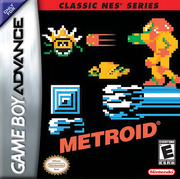
Metroid is an exploration-heavy adventure where new abilities open routes, and careful movement through dangerous spaces matters throughout.
Metroid
How to play Metroid
- Press Start Game above to load Metroid inside the browser player.
- Click the game screen once so Keyboard / Mouse inputs register cleanly.
- Follow the on-screen menu to begin a single-player adventure session.
- Open the Controls button any time to check inputs, or press Fullscreen for a larger view.
What Metroid is and how it plays
Metroid is a free adventure browser game designed around exploring areas, interacting with characters or objects, and advancing through stages. Metroid is an exploration-heavy adventure where new abilities open routes, and careful movement through dangerous spaces matters throughout.
Each session rewards observation, tracking objectives, and combining clues or abilities. Because Metroid runs directly in your browser, you can open a quick round between tasks or replay stages until you master the layout.
- Genre focus: Adventure gameplay built for direct browser play.
- Play mode: Single-player support inside one lightweight page.
- Instant access: loads on demand when you press Start Game with no download.
- Player tools: built-in controls reference, quick reload, and fullscreen view.
Metroid controls and browser setup
Metroid uses Keyboard / Mouse on desktop browsers and supports touch input when the embedded version provides on-screen buttons. Review the table below before starting your first round.
| Platform | Input | Action |
|---|---|---|
| Desktop | Keyboard / Mouse | Use the keyboard or mouse as prompted by the game. |
| Desktop | In-Game Hints | Follow any on-screen prompts for version-specific actions. |
| Mobile | Touch Input | Tap visible controls if the embedded version supports touch. |
| Mobile | Fullscreen | Use fullscreen or landscape mode for a cleaner session. |
| Toolbar | Fullscreen | Expand Metroid to fill your screen. |
| Toolbar | Reload | Restart Metroid from a fresh browser session. |
Tips for playing Metroid online
Consistent input and a clear view make Metroid easier to learn on your first few attempts. Apply these four habits while playing in your browser.
- Check edges of each area for paths, switches, or items that help in later stages.
- Read short in-game prompts carefully so you do not miss objective changes.
- Test new items or abilities in safe zones before entering tougher encounters.
- Keep the browser tab open during longer sessions because browser games store state locally.
Metroid FAQs
Yes. You can play Metroid online for free directly in your web browser without creating an account or downloading files.
Metroid primarily uses Keyboard / Mouse on desktop computers. Open the Controls button below the player to view both desktop and mobile guidance.
Yes. Metroid runs in modern desktop and Chromebook browsers, and touch-compatible versions work on phones and tablets in landscape mode.
Use the Reload button below the player to restart Metroid cleanly, or press Fullscreen to expand the game frame across your display.